Run Project
1. Get Project Source Code
Clone the code. The frontend project is located in the ui\zhontai.ui.admin.vue3 folder.
git clone https://github.com/zhontai/Admin.Core.gitgit clone https://gitee.com/zhontai/Admin.Core.gitNote:
When cloning code, make sure the target path does not contain any special characters (such as spaces, Chinese characters, punctuation marks, etc.). It is recommended to use a path consisting only of English letters, numbers, and underscores (_). For example:
Incorrect: C:/My Projects/code-repo/ Correct: C:/my_projects/code_repo/
This avoids runtime errors caused by path issues.
2. Install VSCode Tools
After completing the VSCode Configuration, open vscode and navigate to the ui\zhontai.ui.admin.vue3 project. Press Ctrl + ` or select View > Terminal to open the terminal.
3. Install Node.js
Visit the official website to download and install the latest version nodejs
Note
If you install a package manager, you don't need to install nodejs separately.
For more package managers, visit:
https://nodejs.cn/en/download/package-managerInstall the nvm package manager. For Windows, download and install the latest version nvm-setup.exe:
https://github.com/coreybutler/nvm-windows/releasesView available versions: nvm ls available
View installed Node versions: nvm ls
Install a specific version: nvm install 23.5.0
Use a specific version: nvm use 23.5.0
Install the latest version: nvm install latest
Use the latest version: nvm use latest
4. Install pnpm
Copy the code and run it in the vscode terminal or cmd:
npm install -g pnpm --registry=https://registry.npmmirror.comNote
If pnpm fails to install npm packages
The reason for pnpm failing to install npm packages may be due to network issues or geographic location. Sometimes downloading packages from the official registry can be slow, or some packages may be inaccessible.
To solve this, open cmd as administrator and install nrm, which makes it easy to switch between different npm mirror sources without manually editing npm configuration files.
npm install -g nrm --registry https://registry.npmmirror.comList all available mirror sources with nrm:
nrm lsnpm ---------- https://registry.npmjs.org/
yarn --------- https://registry.yarnpkg.com/
tencent ------ https://mirrors.cloud.tencent.com/npm/
cnpm --------- https://r.cnpmjs.org/
taobao ------- https://registry.npmmirror.com/
npmMirror ---- https://skimdb.npmjs.com/registry/Use the Taobao mirror source with nrm:
nrm use taobaoUse nrm ls to verify the active mirror source:
  npm ---------- https://registry.npmjs.org/
  yarn --------- https://registry.yarnpkg.com/
  tencent ------ https://mirrors.cloud.tencent.com/npm/
  cnpm --------- https://r.cnpmjs.org/
* taobao ------- https://registry.npmmirror.com/
  npmMirror ---- https://skimdb.npmjs.com/registry/
5. Install npm Packages
Run the following command or directly click the NPM script install:pkg to install npm packages:
pnpm run install:pkgWhen you see the following prompt, npm packages are installed. Note that no errors should occur during installation:
Done in 894ms
 *  The terminal will be reused by the task, press any key to close.
Note: If you switch to a page and still see many red error markers, please close vscode and reopen the project.
6. Run Project
Run the following command or directly click the NPM script dev to run the project:
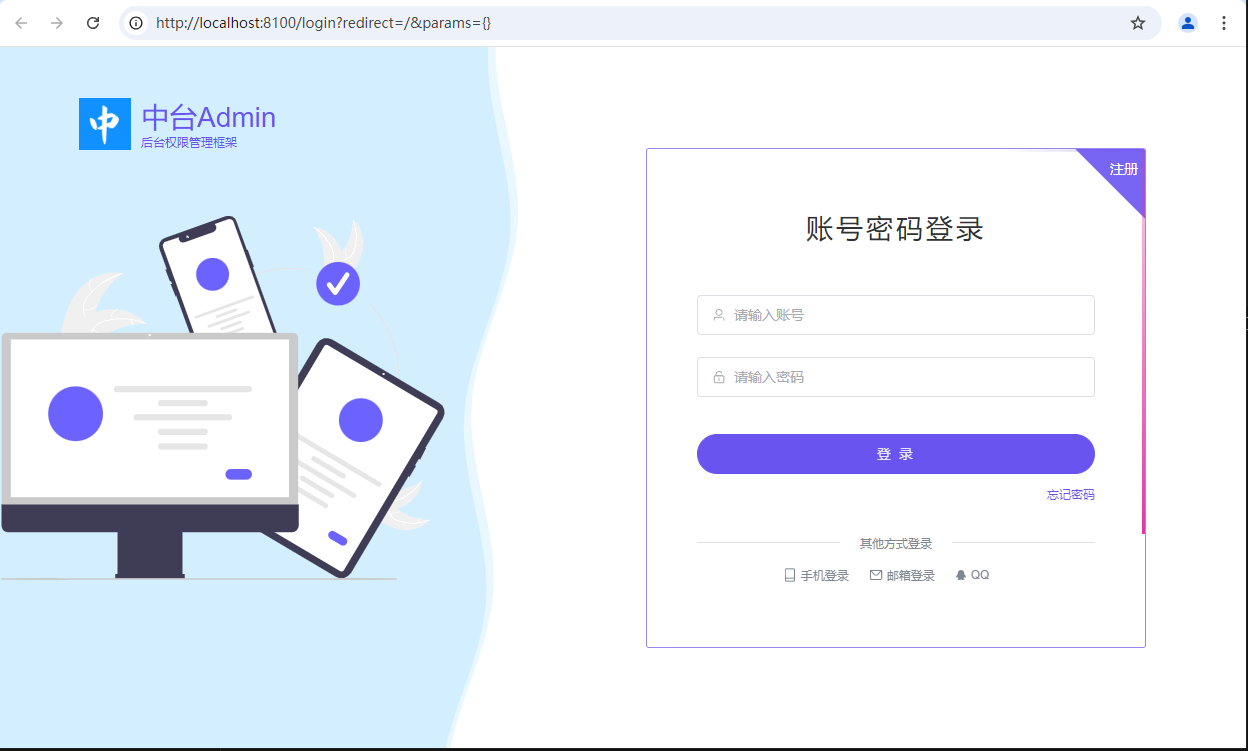
pnpm run devAfter successful startup, it will automatically redirect to the login page.