

VS Configuration
VS Download
Official website: https://visualstudio.microsoft.com
Note
You need to uninstall older versions of VS, otherwise projects started via EasyRun may have abnormal API access, showing Specified method is not supported.
Debug NuGet Package Source Code
Click the top menu: Tools -> Options -> Debugging -> General, uncheck Enable Just My Code, check Enable Source Server Support -> click OK
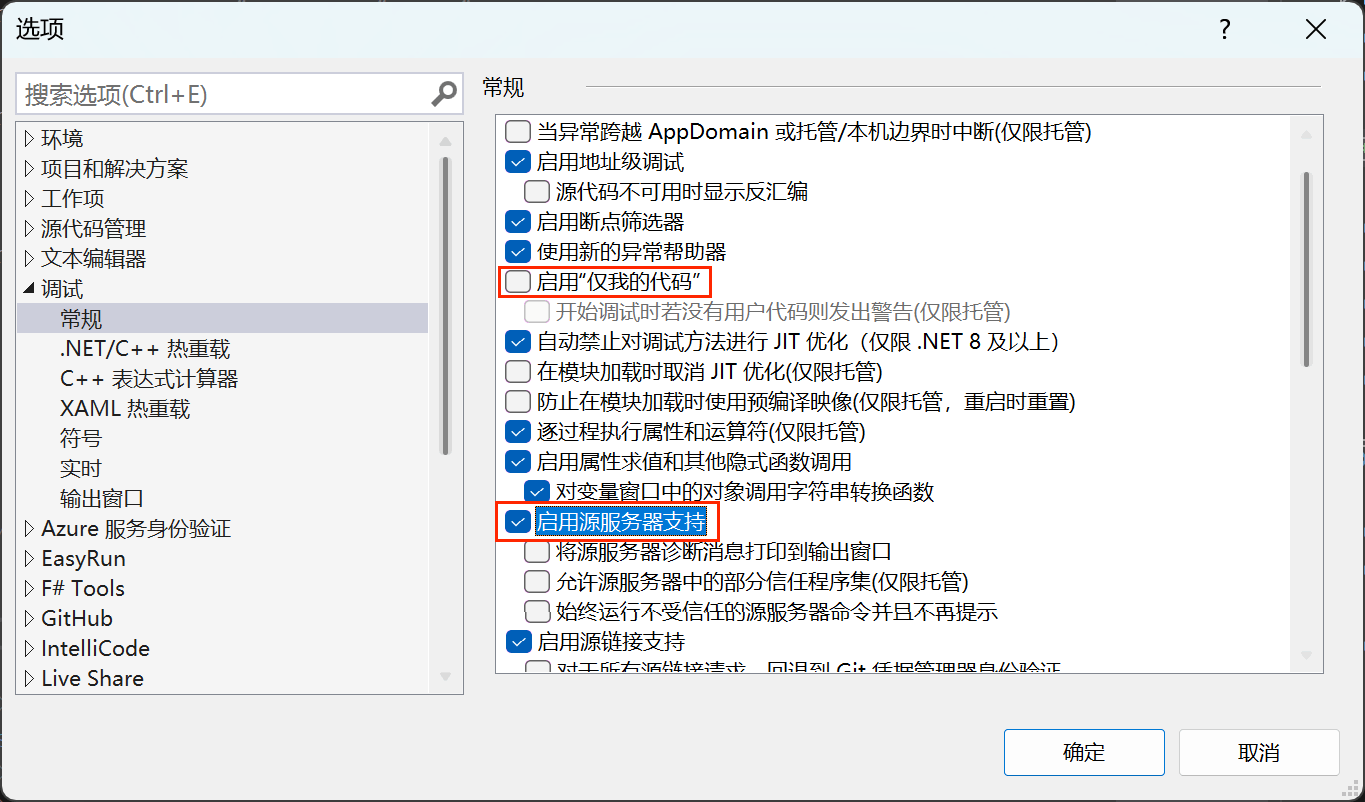
Press F12 to enter NuGet package source code, set breakpoints in the code you want to debug, and click the Debugger button to start debugging.
Enable Advanced Save Options
By default, newer versions of Visual Studio 2022 may not display Advanced Save Options in the File menu. You need to add it manually.
- Open Visual Studio.
- Click the top menu Tools > Customize.
- In the popup window, switch to the Commands tab.
- Select Menu bar and choose File in the dropdown (the menu location you want to modify).
- Click the Add Command button on the right.
- In the popup window, select File on the left, find Advanced Save Options on the right, and click OK.
- Close the Customize window.
The Advanced Save Options menu item will now appear in the File menu. Open the Advanced Save Options window to set encoding, line endings, etc.
Constructor Parameter Naming Rules
- Tools -> Options -> Text Editor -> C# -> Code Style -> Naming
- Click Manage naming styles
- Add a naming style with the following settings:
Naming style title: private-fields-with-underscore
Required prefix: _
Capitalization: Camel case
Use the shortcut key Alt + Enter at the constructor parameter string name, and select the Create field '_name' and assign option.
Generated code:
c
public class ModuleService : BaseService, IDynamicApi
{
  private readonly string _name;
  public ModuleService(string name)
  {
      _name = name;
  }
}